Share on WhatsApp
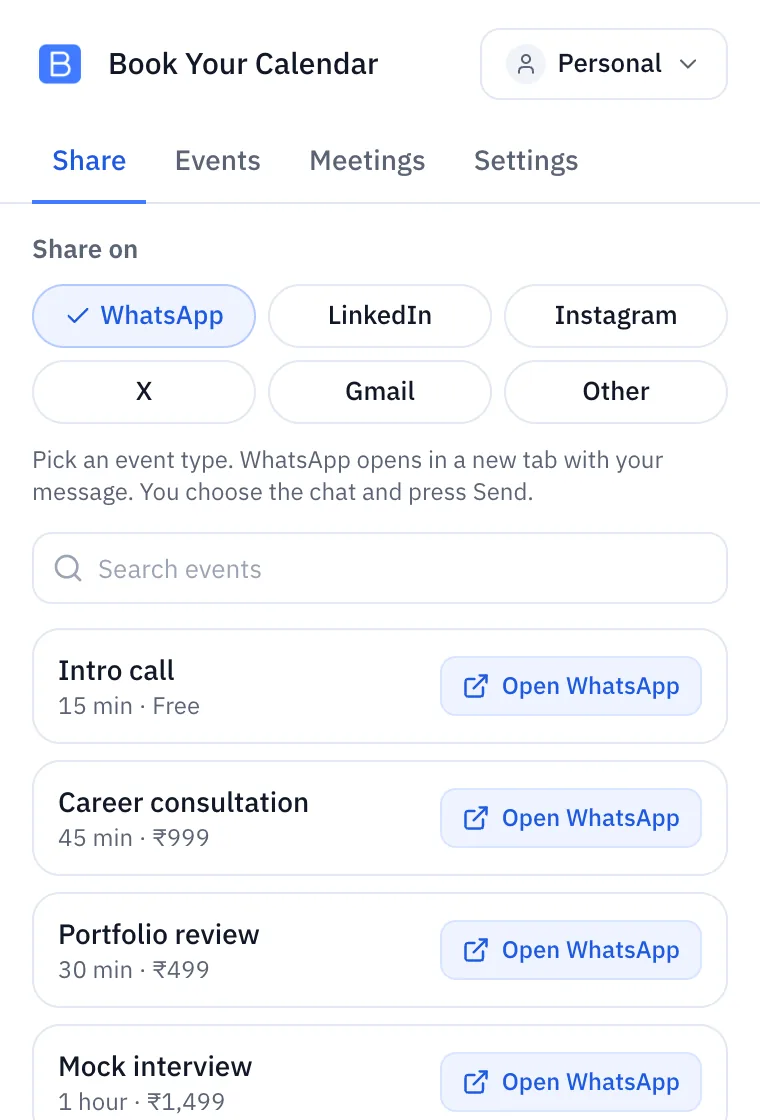
Open the extension, keep WhatsApp picked and click Open WhatsApp on an event type.
- WhatsApp's own Click to Chat opens in a new tab with your message
- You choose the chat and press Send


Share your booking link in two clicks, without leaving the tab you're on.
Share your booking links on WhatsApp, LinkedIn, Instagram, X and Gmail, and see your event types and upcoming meetings, from the browser toolbar.
Hosts who send booking links in chats and emails every day, on their own or in a team.
Works with any Book Your Calendar account, including the Free plan. Team mode needs the team owner on a paid plan. Your personal links always work.
It never reads, saves or sends your chats or emails.
Alt+B, or Control+Shift+B on a Mac, opens it on the tab you are on. Change it at edge://extensions/shortcuts.
Short guides for the things you will do every day. You always press Send yourself.
Open the extension, keep WhatsApp picked and click Open WhatsApp on an event type.
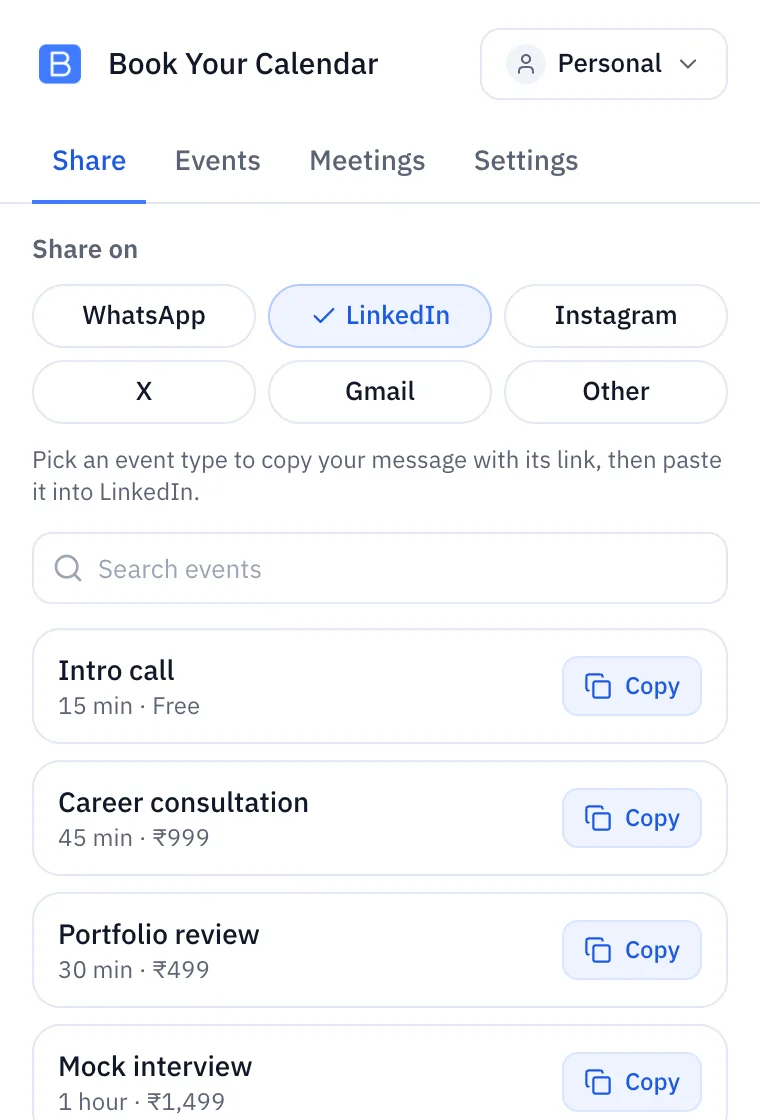
Pick LinkedIn, Instagram or X, then Copy on an event type.
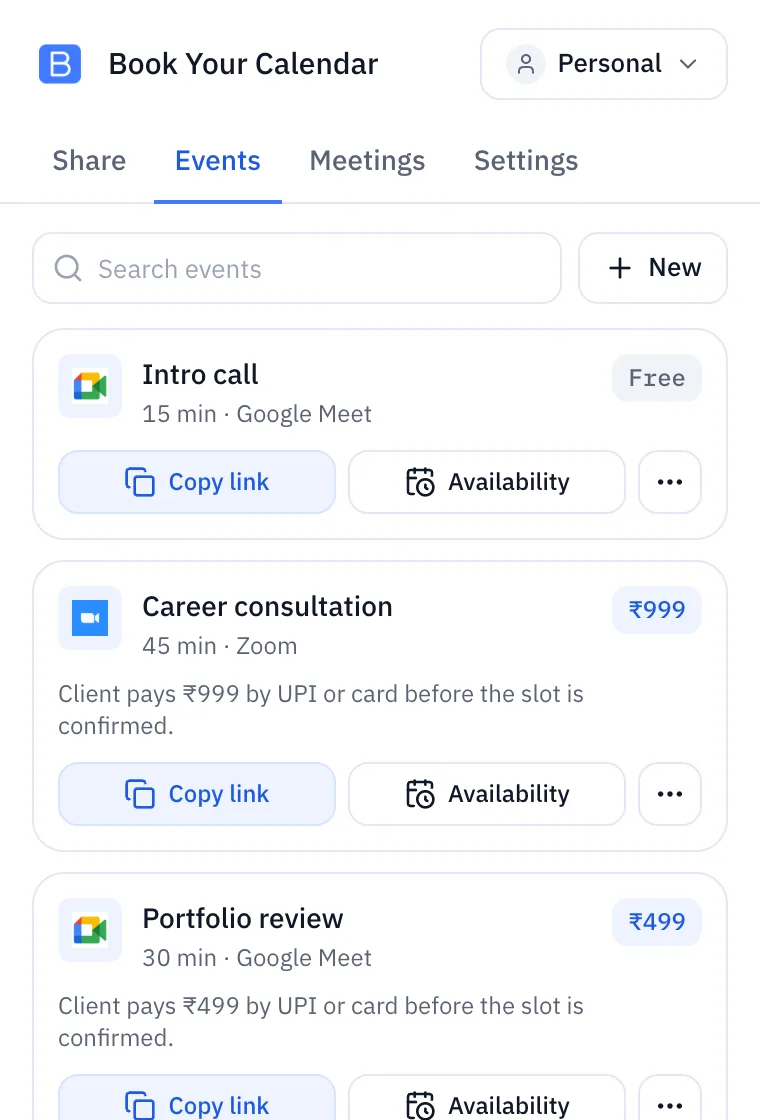
In the Events tab, click Copy link on any event type.
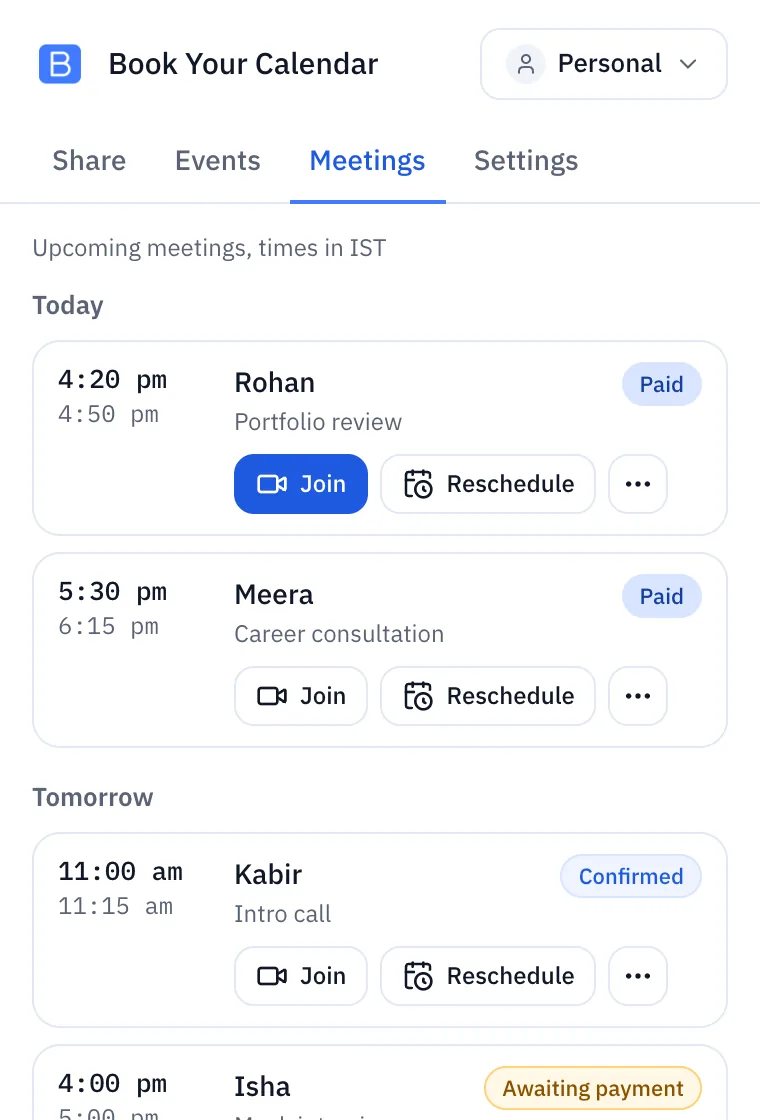
The Meetings tab lists your upcoming meetings, in your time zone.
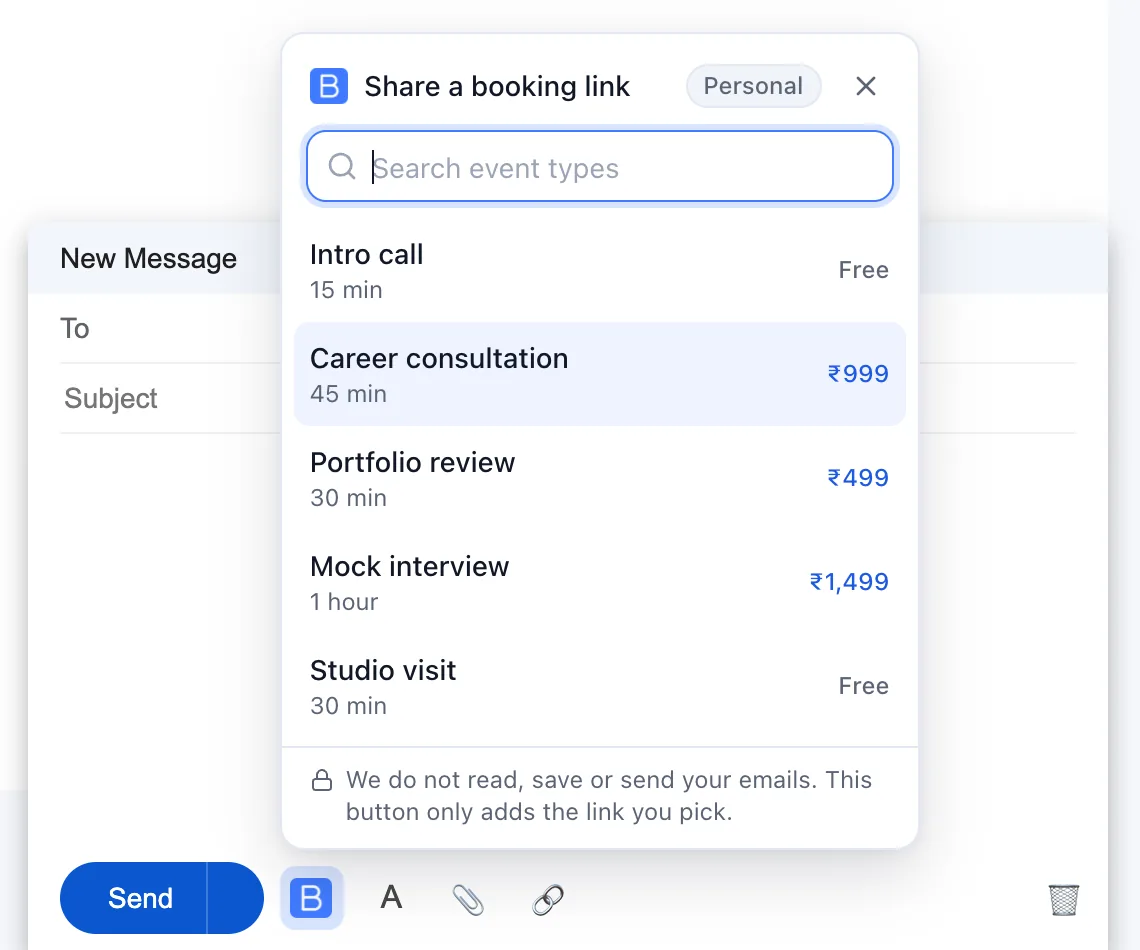
In a Gmail compose window, click the Book Your Calendar button next to Send and pick an event type.
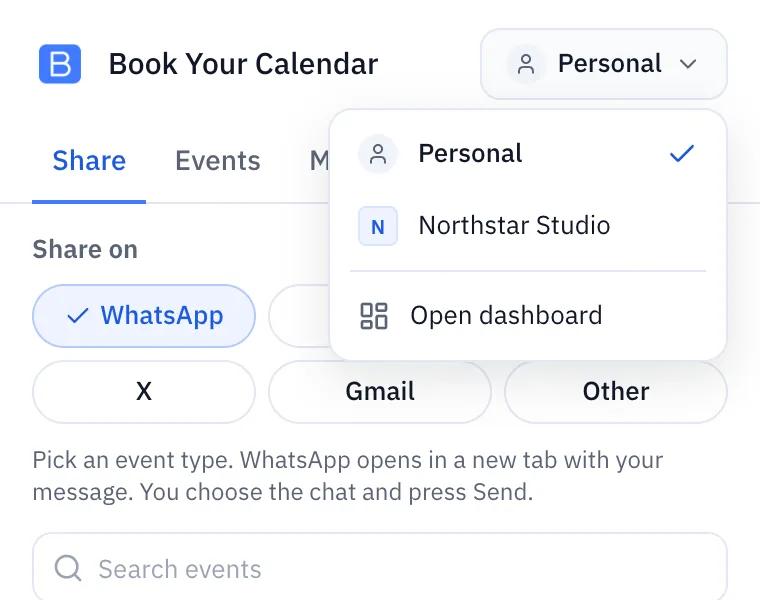
Click Personal at the top of the extension and pick your team.
The real extension, with demo data.
01 / 05
Quick share with LinkedIn picked: Copy, then paste it yourself.
02 / 05
Events. Copy link, availability and more for every event type.
03 / 05
Meetings. Times in your time zone, Join one click away.
04 / 05
Teams. One switch for personal and team links.
05 / 05
Illustration: the Book Your Calendar button in an email compose window.
From the store to your first shared link in five steps.
Click Install now, then Get and Add extension.
Click the puzzle piece in the Microsoft Edge toolbar, then the eye icon next to Book Your Calendar to show it in the toolbar.
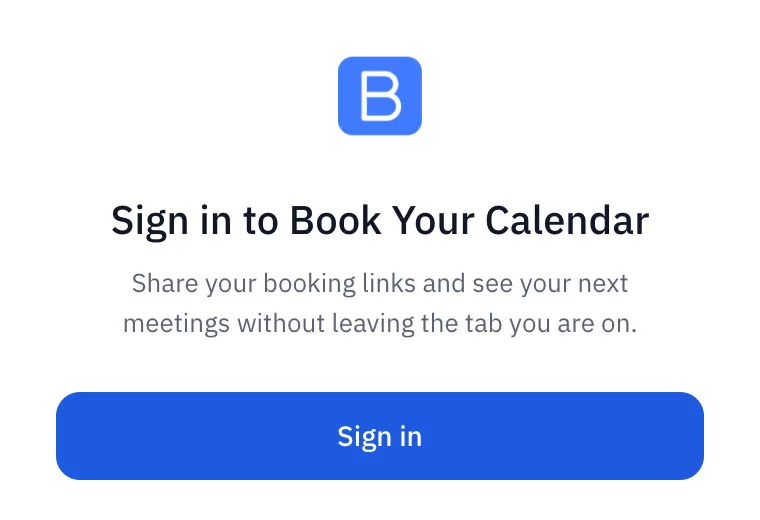
Click the icon, then Sign in. A tab opens on bookyourcalendar.com: sign in if you are asked, then click Allow.
Press Alt+B (Control+Shift+B on a Mac) or click the icon. Pick WhatsApp or another chip, then an event type.
Open a new email in Gmail. Click the Book Your Calendar button next to Send and pick an event type.
Tell others what you think. Your honest review helps other hosts find us.
Write a review on Microsoft Edge Add-onsThe full details are in our privacy policy, section 7, Browser Extension.
Sign in on bookyourcalendar.com in the same browser profile, then click Sign in in the extension again and click Allow on the page that opens. If the page says the link is not valid, close it and start again from the extension. Still stuck? Contact us and tell us which browser you use.
Sign out in the Settings tab of the extension, or on your dashboard open Settings, find Connected extensions and click Disconnect. The extension stops working at once.
The shortcut is Alt+B, or Control+Shift+B on a Mac. To change it, open edge://extensions/shortcuts.
We support Chrome, Firefox and Microsoft Edge, each from its own store: the Chrome Web Store, Firefox Add-ons and Microsoft Edge Add-ons. Other browsers built on Chromium may be able to install the Chrome version, but we have not tested them.
Right-click the Book Your Calendar icon and choose Remove from Microsoft Edge. To end the connection on our side too, disconnect it in Settings, Connected extensions.